Lab 2: 4G LTE Network Emulation and Throughput Testing Utilizing ARA
Before starting this lab, familiarize yourself with the basics of 4G network infrastructure by visiting A Beginners Guide to Mobile Communication Infrastructure and reading the section regarding 4G networks. To understand the platform that you will be using, read about the ARA Sandbox Service.
Objectives
Successfully set up an emulated 4G network and simulate data traffic between the UE and EPC.
Conduct a throughput test on the emulated network and analyze performance.
Learning Objectives
Gain an understanding of the key components of a 4G network and their responsibilities.
Define metrics that can affect the throughput of a network.
Get experience utilizing SDRs in a lab environment.
This lab must be completed in a single sitting because the containers don’t save data once deleted.
If you have signed up for ARA’s jumpbox, make sure that you have the RSA private key you use in the .ssh file of the machine you plan to use to work on the lab.
Procedure
Log on to the ARA portal
Using your school credentials, log in at ARA log-in portal.
Search for “Iowa State University” in the search bar and press continue to be redirected to Okta.
Reserve two sandbox hosts.
Go to ARA Sandbox Service and pick two machines. Any two machines in a cluster like those in the image below are a good choice. For future examples, Sandbox-Host 006 and Sandbox-Host 009 will be used.
On the ARA portal, navigate to Reservations → Leases → Host Calendar
Ensure the hosts you chose are free to reserve. The image below shows Sandbox-Host-006 and 009 are available. Sandbox-Host-003 is currently reserved; see reservation details by hovering your mouse over the colored block.
Create the first lease by clicking Create Lease next to host calendar.
You can choose a lease name. However, using eNBLease as the lease name is recommended to make things less confusing moving forward. The start and end date can be left blank.
Use the Site dropdown menu and select Sandbox. Use the trailing numbers from Sandbox-Host-xxx for the device ID. For example, use Sandbox-Host-006.
Leave the wireless section of the lease blank and click Create Lease.
If done correctly with an available host the following messages will appear at the top right of the screen.
Do the same for the second lease using your other available host. Using the lease name UELease is recommended to avoid confusion later. For example, Sandbox-Host-009.
Provide a screenshot of both of the successfully created hosts’ lease details in your lab report. To see lease details, click on the blue lease name.
Create two containers.
Navigate to Container → Containers → Create Container.
For the first container, choose a name. It is recommended to use eNBContainer for the name to avoid confusion. Use the docker image arawirelesshub/srsran:srsenb.
Fill in the Spec tab with the following specs:
Hostname: eNB (recommended, but you can choose)
CPU: 6
Memory: 8192
Lease Name: eNBLease (or the name you chose for the first lease)
Click the up arrow for ARA_Shared_Net in the Networks tab, making sure that it moves to the Allocated section, then click Create.
If done correctly, a message saying successfully created will appear at the top right. It might take a few seconds for the container to get up and running. While waiting, create the second container.
For the second container, it is recommended to use the name UEContainer and use the image arawirelesshub/srsran:srsue_4g. For the Spec tab, use all the same specs except:
Hostname: UE
Lease Name: UELease
Provide screenshots of both of the successfully created containers’ Overview tabs. Go to the container overview by clicking on the blue container name.
Connect to containers using jumpbox.
Select the eNBContainer and go to the Console tab.
Run the command
passwdusing a password you won’t forget (root is recommended), then start the ssh service using the command:service ssh start
Do this for the UEContainer as well.
Open two terminals or command prompt windows and ssh into ARA’s jumpbox:
ssh username@jbox.arawireless.orgMake sure that the RSA private key you used to sign up for ARA’s jumpbox is in the .ssh folder on the machine you are using.
Go back to the Overview of eNBContainer, under specs a floating IP address is listed. This is the IP address you will use to ssh from ARA’s jumpbox to the container using:
Username: root
Password: (the one you chose earlier)
Open another two terminals for UEContainer as well.
Starting the EPC and eNB
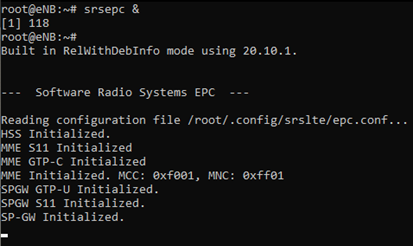
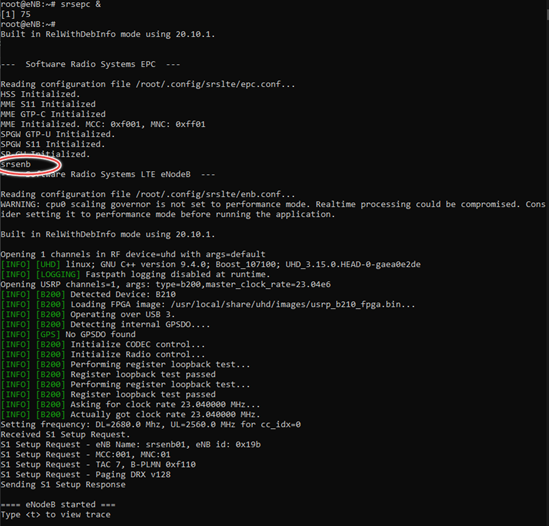
In one of the terminals for eNBContainer, run the following commands:
srsepc &       # start EPC in the background
srsenb         # start eNB
Starting the UE
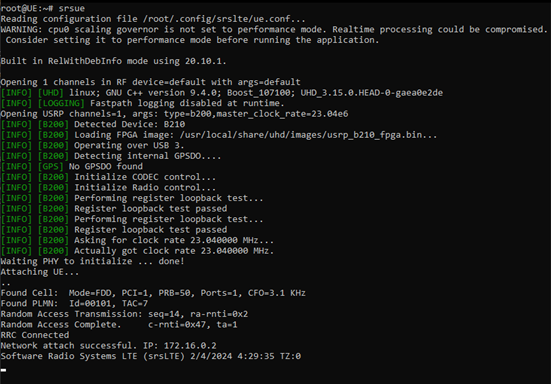
In one of the terminals for UEContainer, run:
srsue
In the other terminal for UEContainer, run:
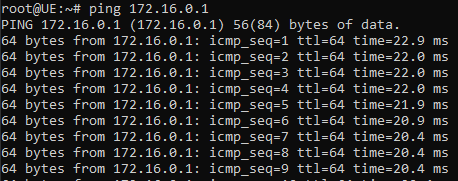
ping 172.16.0.1
This checks that you are connected to the core. Provide a screenshot of your successful ping in your lab report.
Running the throughput test
In the terminals that are running srsenb and srsue, type
tand hit enter to start the console trace.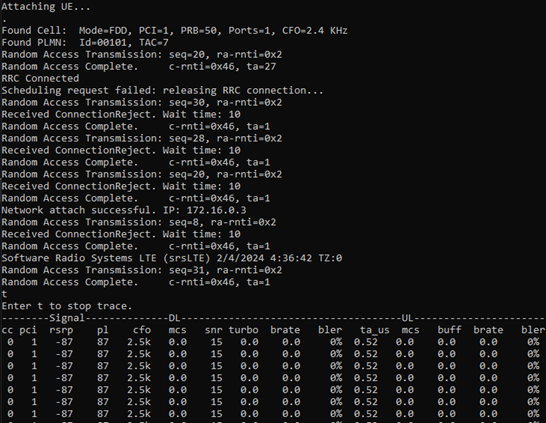
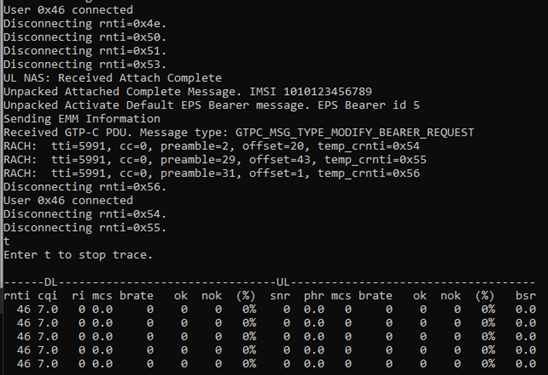
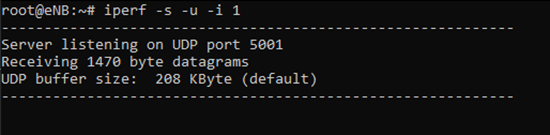
In the unused terminal for eNBContainer, run:
iperf -s -u -i 1
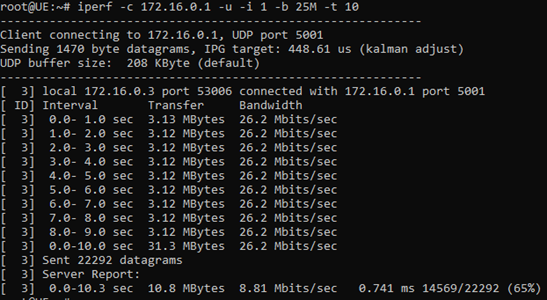
In the UEContainer terminal that was used for the ping command, run:
iperf -c 172.16.0.1 -u -i 1 -b 25M -t 10
Provide a screenshot of both console traces in your lab report. Typing
tand hitting enter will stop the console trace. Typetand hit enter again to restart it.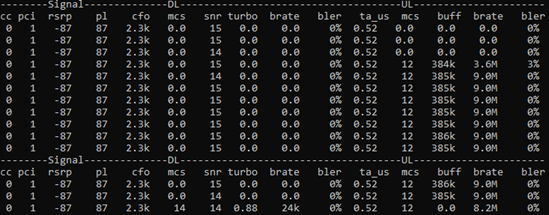
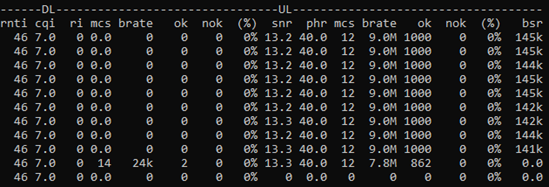
In the lab report, define the options for iperf used for the UEContainer and define the bitrate seen in both console traces.
Run the command again but change the value for the
-bflag to make a noticeable difference in the bitrate:iperf -c 172.16.0.1 -u -i 1 -b <NEW_VALUE> -t 10
Provide a screenshot of the console traces and the
-bvalue you used.
(Optional) Create a new UE
To see the effects that distance between the UE and eNB can have on throughput:
Find another Sandbox-Host that is further or closer to the eNB.
Delete the lease for the current UE.
Make a new one.
Rerun the experiment.
Describe the changes you observed in your lab report.
Deleting Leases
Navigate to Reservations → Leases and use the box next to Lease Name to select both leases, then click Delete Leases.
Provide a screenshot of the empty Leases page in your lab report.